Student guide
How to join a class on the VXP, what you can do while you are in one, and how to watch one back afterwards.
There is nothing to install and no account to create. Classes run in your web browser, and the link your class was sent is all you need.
Three things are worth sorting out in advance:
- A browser you keep up to date. Chrome, Edge, Safari, and Firefox all work.
- Headphones, if you have them. They stop your speakers echoing back into the class, which is the single most common cause of poor sound.
- A few minutes. Arriving five minutes early gives you time to check your camera and microphone before anything starts.
Because the VXP is built for close looking, for the best experience, we recommend using a device with the largest screen possible. However, you can still join on a phone or tablet. See On a phone or tablet.
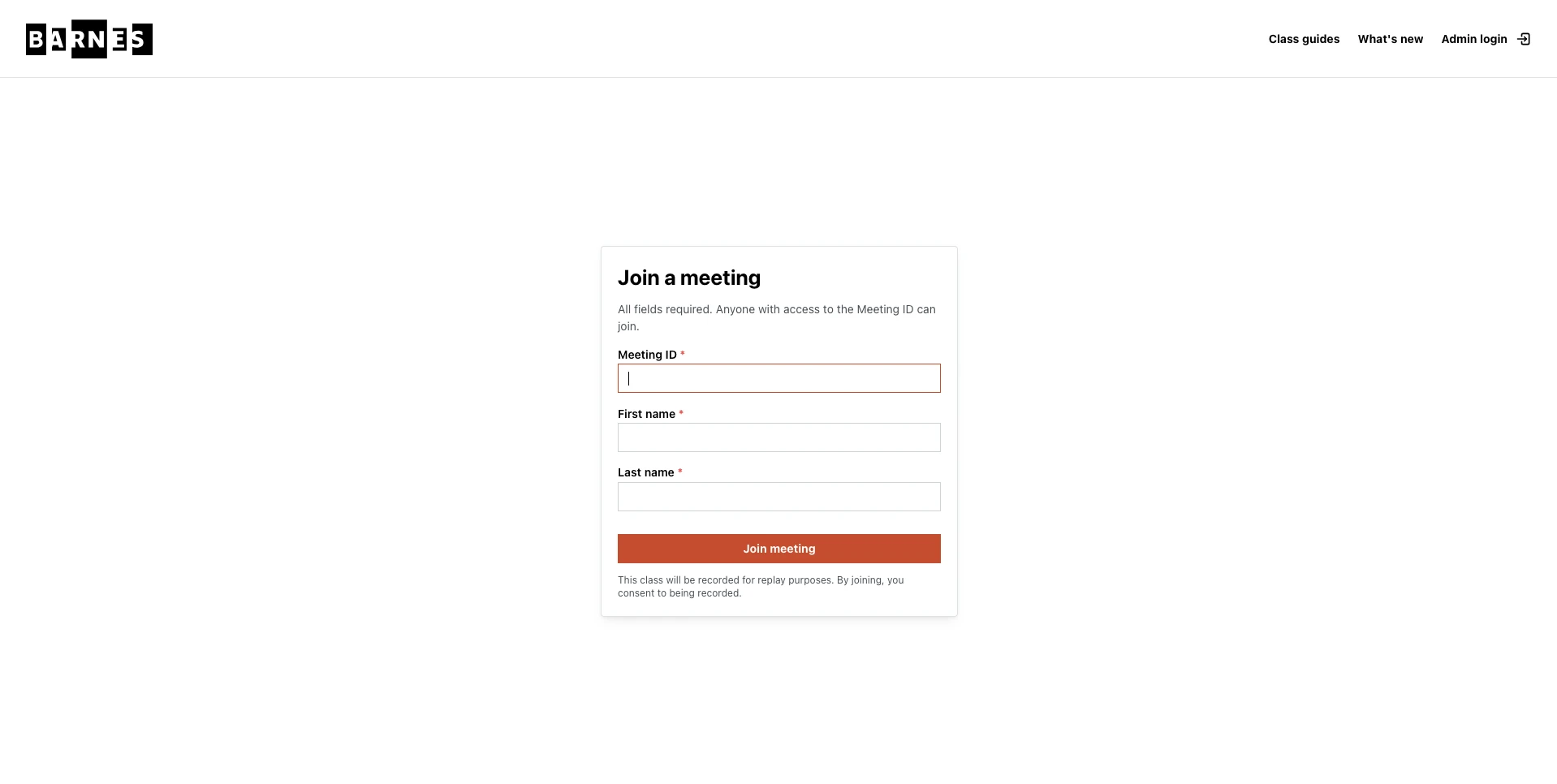
Your class link takes you straight in. Open it in a browser and you will be asked for your first and last name, so the instructor and the rest of the class know who is there. No password, and no sign-in.
If you have a class ID rather than a link, you can enter it by hand along with your name. Class IDs are case-sensitive, so type it exactly as it was sent to you.
One thing to know before you join: classes are recorded so they can be watched again afterwards, and joining means agreeing to that. Your camera and microphone stay off until you turn them on yourself.
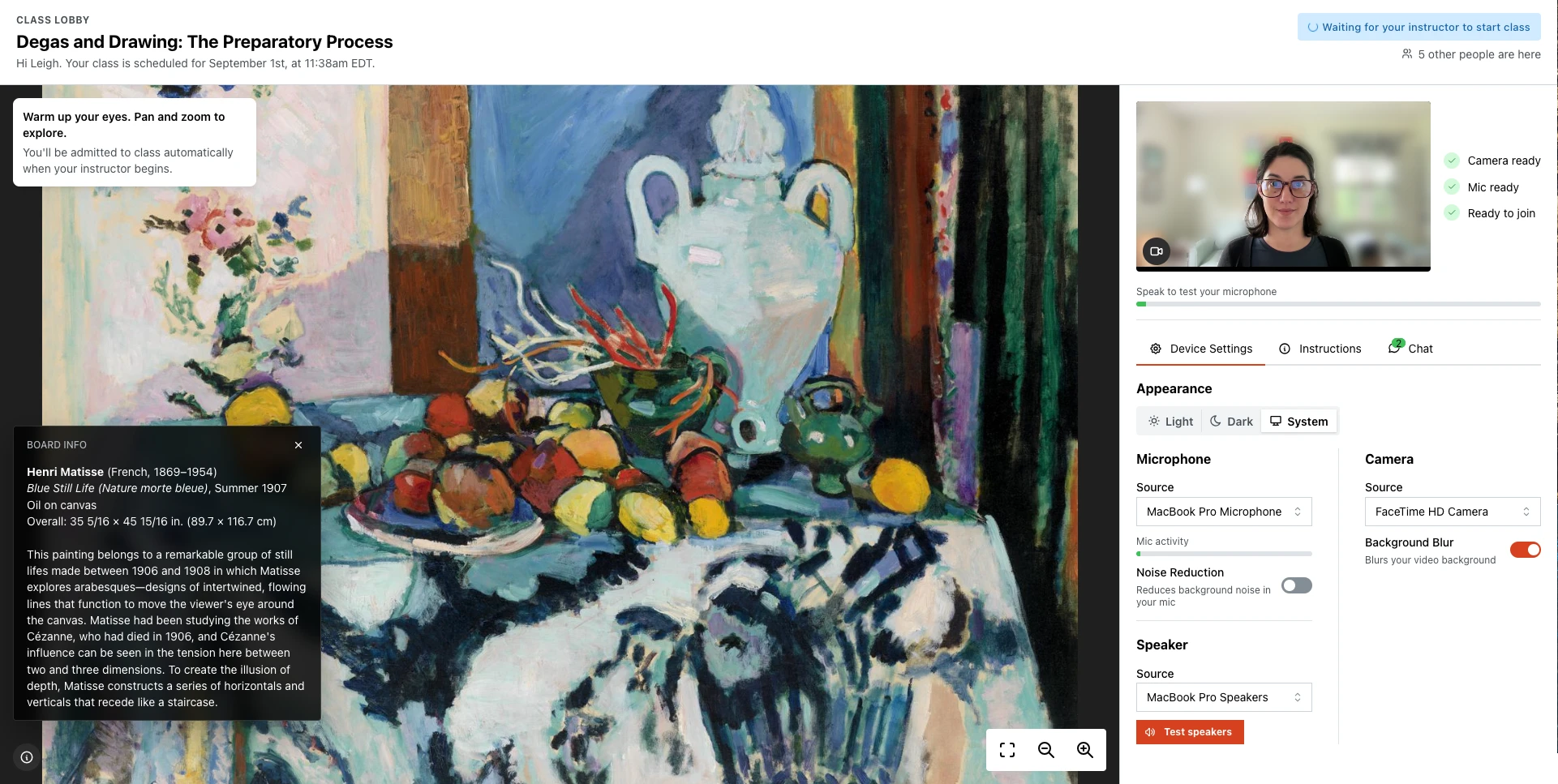
Arriving early puts you in a waiting room rather than straight into the class, and when the instructor begins everyone waiting is brought into the class together.
While you wait, the screen gives you three things to do:
- Check your camera and microphone. You will see yourself, a moving bar that responds when you speak, and a green tick beside your camera, your microphone, and your connection once each is ready. If you have more than one microphone or camera, you can choose between them here, blur your background, and test your speakers.
- Practice deep looking. A deep zoom canvas with a work to explore before class begins.
Nothing you do in the waiting room is seen by anyone else, so it is a safe place to test your camera, microphone, and speakers.
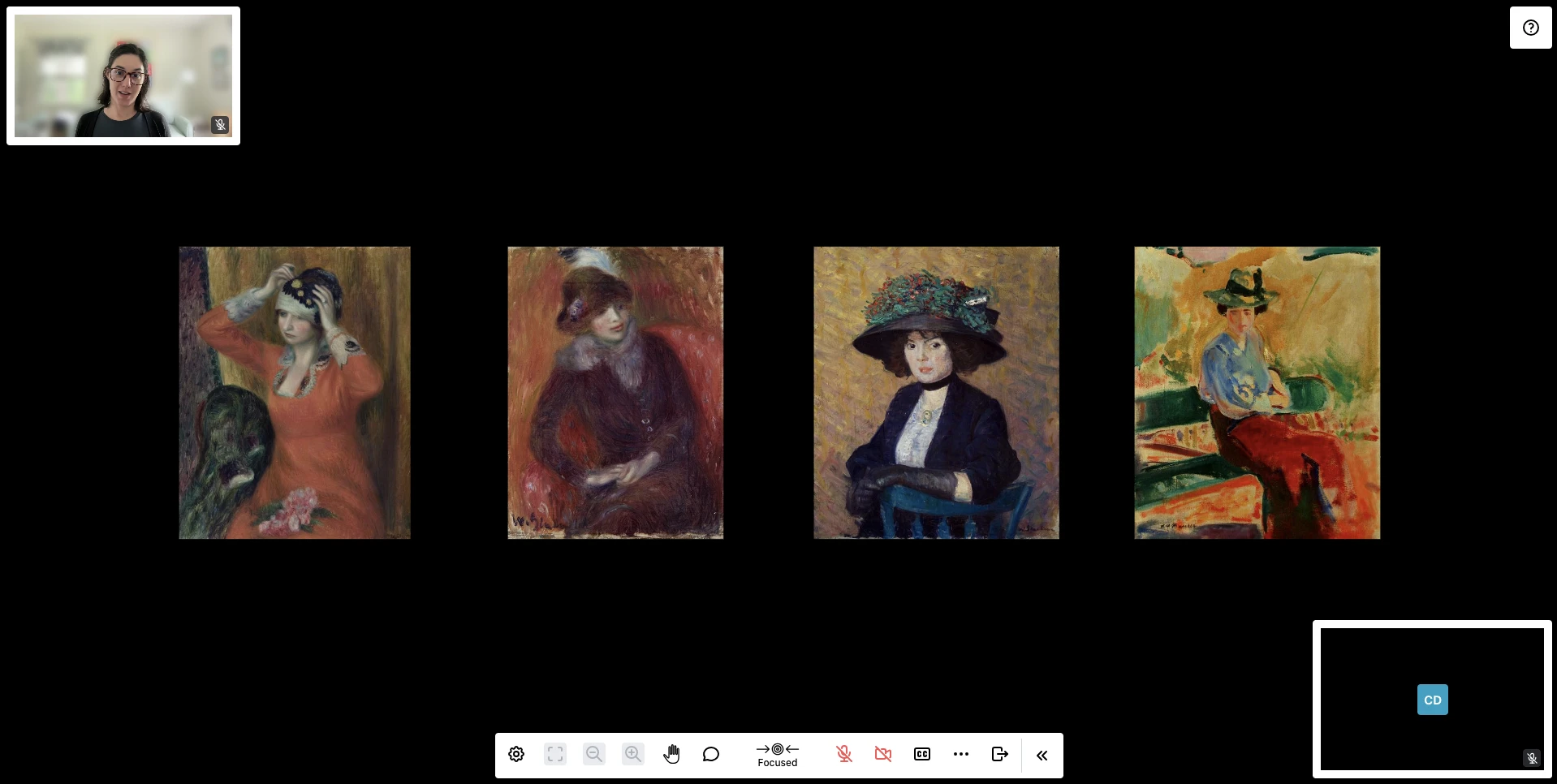
Most of the screen is the artwork. Everything else sits around the edges so it stays out of the way:
- Your instructor appears in a small video beside the artwork.
- Everyone else in the class appears as a row of small videos, which you can hide if you would rather just look at the object.
- Your own controls run along one edge — zoom, your microphone and camera, chat, and raising your hand.
This is the one idea worth understanding before your first class. The room is always in one of two states, and a small indicator tells you which:
- Focused. Everyone is seeing what the instructor sees. When they zoom into a detail, your screen goes with them. You are all looking at the same thing at the same time.
- Exploring. The instructor has released control of the view, and you can move around it yourself — zoom in, pan across, follow your own eye, and find things nobody pointed out.
Your instructor decides which one the room is in, so the indicator tells you rather than asks you. When it says Exploring, take the invitation — that time is set aside for you to look, not to wait.
Focused
Exploring
Watching a class back afterwards works differently: there, you can take control of the view whenever you like. See Finding your way around a replay.
You have a handful of controls, and none of them will interrupt the class by accident.
- Your microphone and camera. Both start off. Turn them on when you want to speak or be seen. Some classes are set up with these switched off for everyone — if yours is, the controls will not respond, and that is deliberate rather than broken.
- Raise your hand.This marks you on your video and in the instructor's list of participants, so they can come to you without you having to interrupt. Lower it the same way.
- Chat.Not every class will have chat enabled. Where it does, everyone can read and post, and messages from your instructor are labelled so you can tell staff from classmates. You can delete your own messages; your instructor can delete anyone's. A short welcome note sits pinned above the message box with who to contact if something goes wrong — close it with the ✕ once you have read it.
- Captions. Turn on subtitles for what is being said.
- Zoom and fit. Available to you while the room is exploring. Fit brings the whole work back into view if you get lost.
You can also go full screen, and hide the instructor or the other participants if the videos are distracting. Leaving the class does not end it for anyone else, and you can come back with the same link.

Classes are recorded, and afterwards you can be sent a link to watch it back. Replay links do not expire.
A replay is not a video of someone's screen. Your instructor's voice and picture are a recording, but the artwork beside them is the real artwork — so you can stop the recording and go further into an object than the class did on the day.
Some of the class is included in the replay, and some is not:
- You get your instructor, every movement they made in class, the chat as it was sent, student audio, and captions.
- You do not get the other student videos, or a way to join in — replay chat is there to read, not to post to.
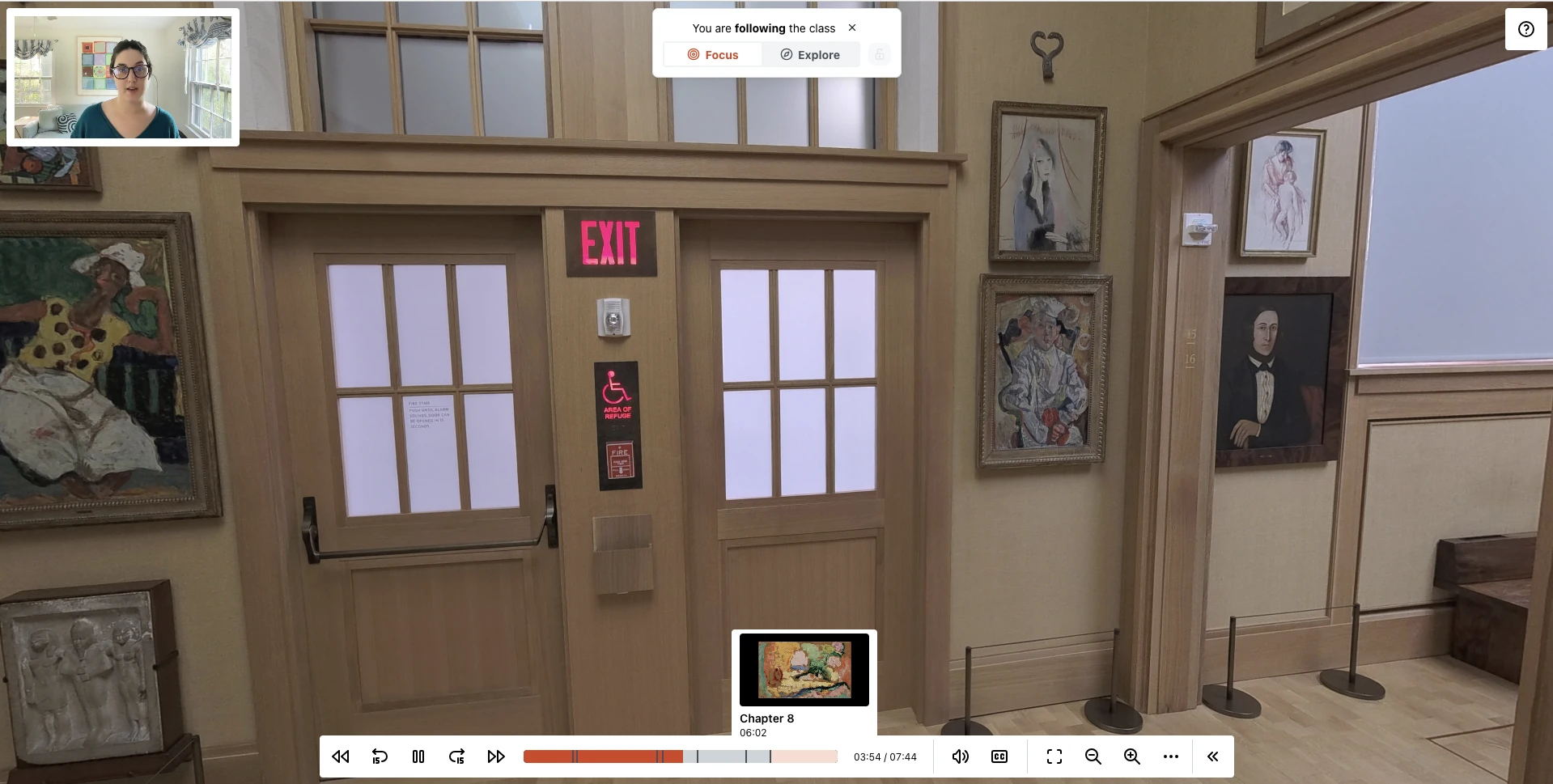
The controls along the bottom are mostly what you would expect: play and pause, skip back or forward fifteen seconds, and a bar you can click to jump anywhere.
Three things are worth knowing beyond that:
- Chapters. The bar is divided into the sections of the class, and hovering one shows you what it covers and when it starts. Arrows at either end jump a whole chapter at a time, and a full list is available if you would rather pick from it.
- You can take control of the view whenever you like.Drag or scroll it and you stop following the recording's movements, the class will carry on without you while you look. Stop moving for fifteen seconds and you rejoin automatically, wherever the recording has got to.
- Or stay as long as you want. The padlock beside the mode indicator holds you where you are, so a long look is not interrupted. Unlock it, or wait for the recording to move on to a new work, and you rejoin.
You are following the class
You are not following the class
There is also playback speed, captions with adjustable size and position, and a help panel listing every control — press ? at any time to open it. If this is your first replay, the tutorial linked from that panel is a short one and worth the time.
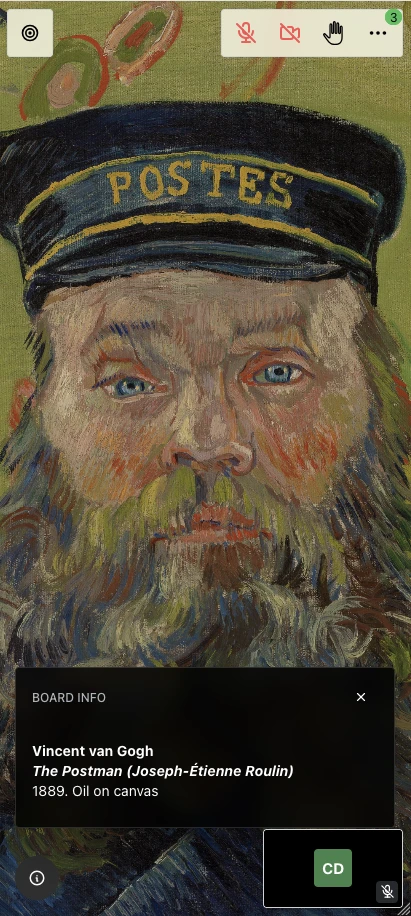
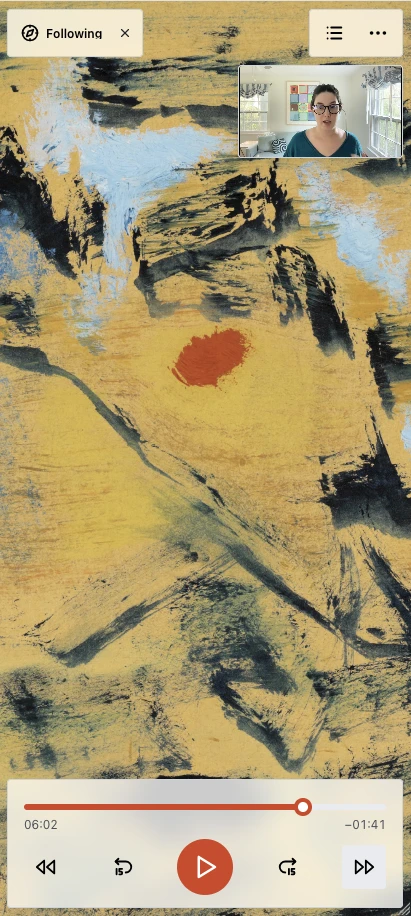
Classes and replays both work on a phone, and both give the artwork nearly the whole screen. You move around it the way you would a photograph: drag to move, pinch or double-tap to zoom. The first time you join, a short list of those gestures appears over the artwork and fades after a few seconds.
The two screens put their controls in different places, which is worth knowing before you go looking for something:
- In a class, your controls are along the top rather than the bottom, and they stay there. One bar holds your microphone, your camera, raising your hand, and a menu (⋮) with everything else in it — chat, who else is here, captions, and your settings. If you are waiting on a reply, watch that menu: the count of unread messages sits on it rather than on a chat icon.
- In a replay, the controls stay hidden until you tap the artwork, and tapping again puts them away — so you can look at an object without any distractions. Chapters and the rest slide up from the bottom when you ask for them.
- The indicator shrinks. It shows the word — Focused or Exploring in a class, Following in a replay — for a few seconds after the class changes, then collapses to a small symbol so it is not sitting over the artwork. Tap it to bring the word back. It has not disappeared.
- Everyone else is a grid rather than a row along one edge.
Most problems in a class are one of these:
- You can't hear anyone. Check your volume, then check you are using the speakers or headphones you meant to. The waiting room has a speaker test, and rejoining puts you back through it.
- Nobody can hear you. Check your microphone is on and that the right one is selected. If the control will not turn on at all, the class has been set up without student microphones.
- You are looking at the wrong thing. If the artwork on your screen does not match what the instructor is describing, say so — they can re-send the current view to everyone, and it will put you back in step without you having to rejoin.
- The artwork will not move. The class is looking together rather than exploring. Wait for your instructor to open it up.
- Something else. Leaving and rejoining with the same link fixes most things and does not disturb the class.