August 20, 2026
A rebuilt platform, with classes unchanged
The platform has been rebuilt. The parts of a class you spend your time in, the artwork, moving between looking together and looking on your own, and watching a class back afterwards, work the way they always have. Nearly everything around them is new and it is quicker to move around.
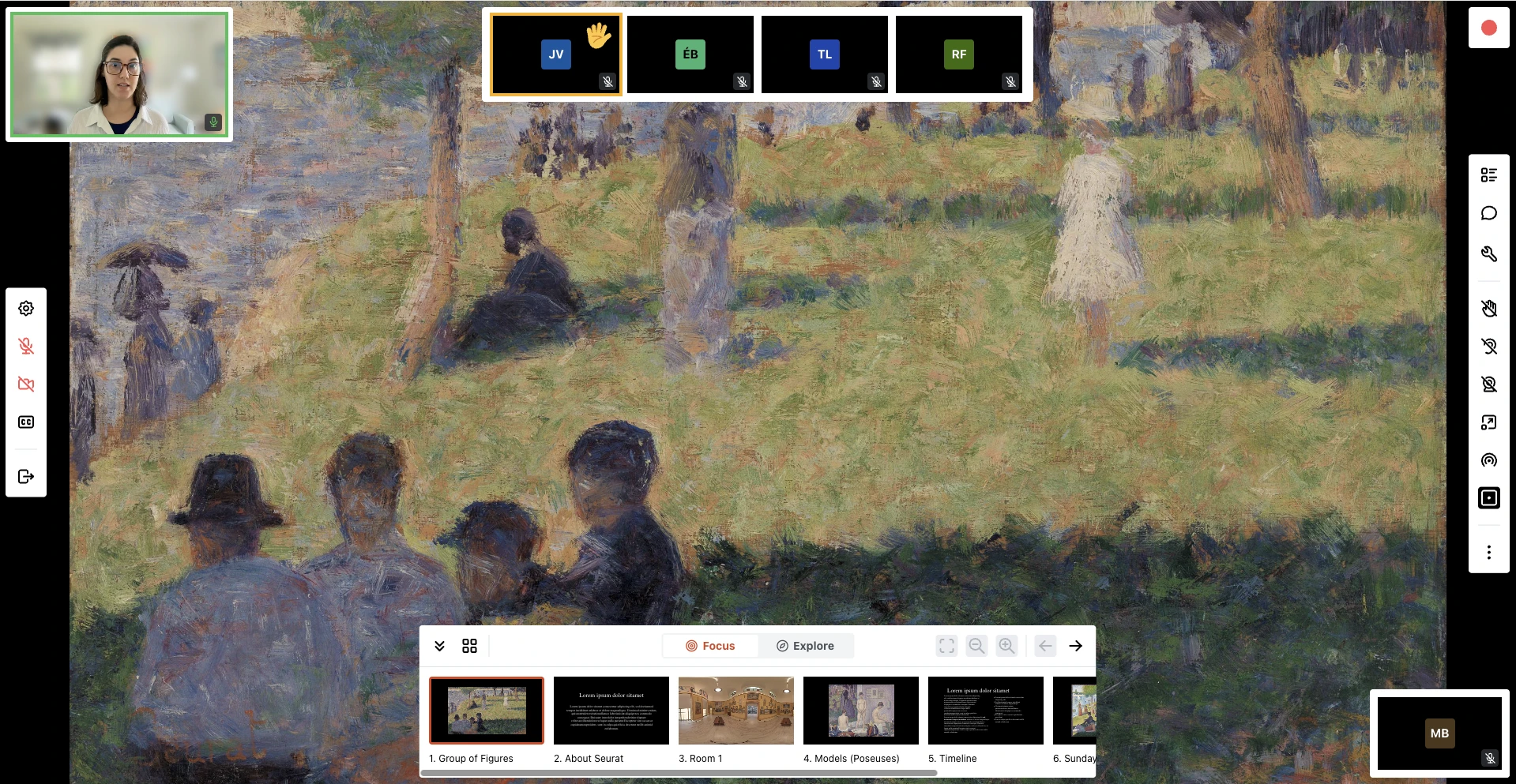
In a class
What you'll notice while taking a class, or watching one back.
A better wait before class
The screen you land on before a class begins has been rebuilt. A work from the Barnes collection now sits on the stage in full depth, so you can pan and zoom into it while you wait — the time before class becomes time to practice deep looking. Your camera preview, device checks and chat sit alongside it.
Zoom into a gallery, not just around it
Classes that use 360° images could always be turned to look around the room. Now they can be zoomed as well.
The conversation is there when you arrive
Chat now loads its full history the moment you join, and survives a page refresh — so arriving late, or reloading because something looked stuck, no longer costs you what was said.
Two instructors can point at once
In a class taught by two people, each instructor has their own pointer. They can draw attention to different parts of the same object at the same time, and one putting theirs away leaves the other's where it is.
Stay with a detail for as long as you want
When you are watching a class back and look on your own, you are normally returned to following along after a few seconds. You can now lock the replay in "Explore" and stay where you are until you choose to follow the class again.
Better on a phone or tablet
Both the class and the replay screens have been rebuilt for a phone. In a class your controls gather into one bar across the top — microphone, camera, raised hand, and a menu holding chat and the rest of the room. Watching a class back, they stay out of the way until you tap, so the artwork has the whole screen. Either way you move around a board with familiar gestures: drag to pan, pinch or double-tap to zoom.
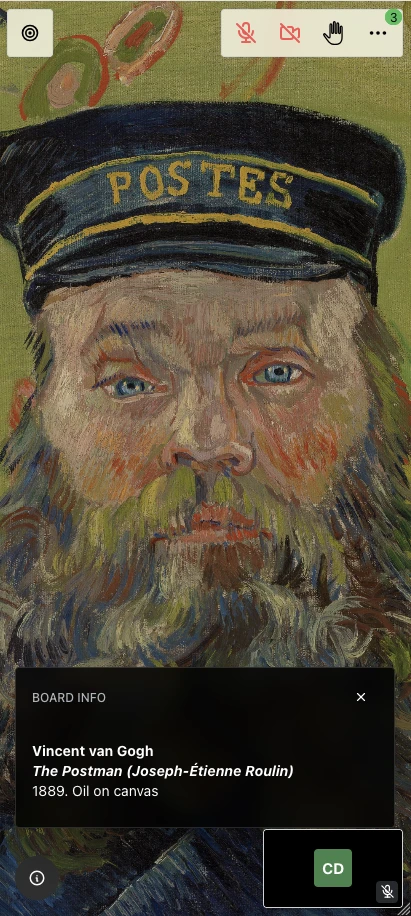
A class. Everything you need is in the bar across the top, and the count on the menu tells you how much has been said in chat while you were looking. Tapping the ⓘ in the corner names the work on screen. 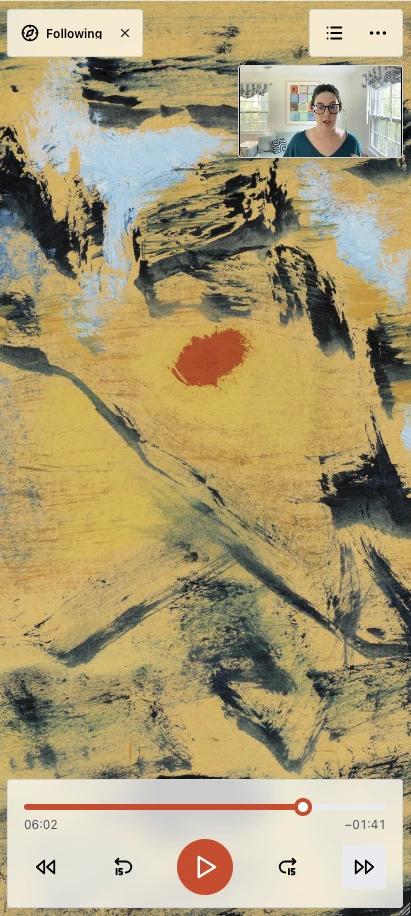
The same class afterwards. The controls stay hidden until you tap, so an object you are looking at properly has the screen to itself. Following means you are seeing what the instructor showed; move the object yourself and you take over until you tap back.
For teams running classes
Changes for the people building presentations and running sessions.
Build a presentation in fewer steps
Select several slides at once to duplicate or delete them together, drag to reorder — a whole selection at a time — add a slide wherever you want it rather than only at the end, and see the whole thing at once in a grid. New presentations now open with a choice of how to begin.
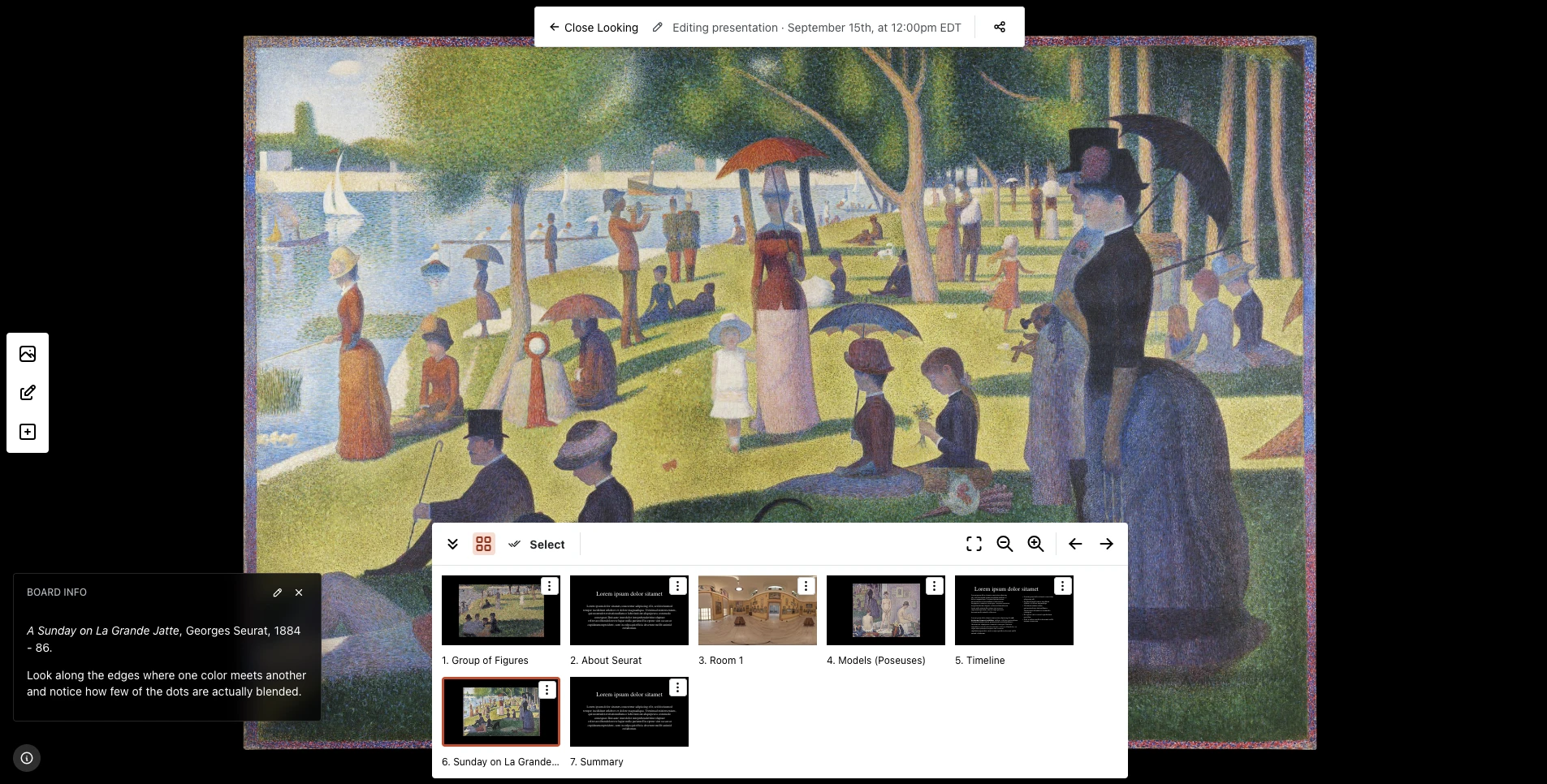
A session laid out in the new grid view. Each panel is one part of the class, and dragging them changes the order it runs in. Find anything from anywhere
Press Ctrl+K, or ⌘K, to jump straight to a page, a course, or a guide.
Redesigned course pages
Your next class sits at the top, an at-a-glance panel shows the state of every session's recording, and the recordings themselves are laid out more clearly.
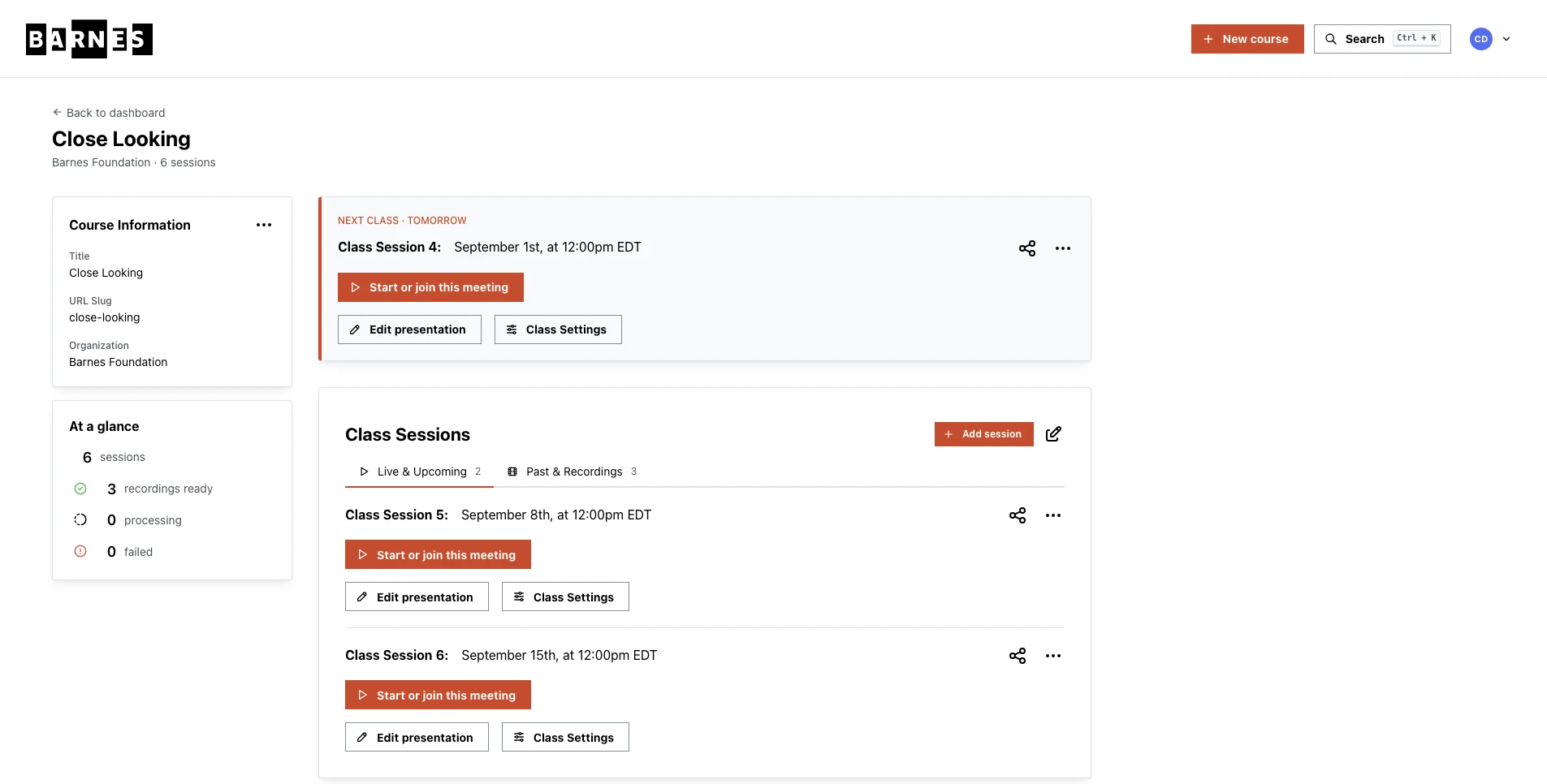
A course as the person running it sees it. The next class sits at the top with everything needed to start it, and the panel on the left summarises how the course's recordings are doing without opening any of them. A calendar of your classes
The dashboard now shows your sessions as a calendar as well as a list.
Organization settings
Your organization's details, branding, and member list in one place.